Get the Most Out of eLi, the Artificial Intelligence Tool
Click to enlarge
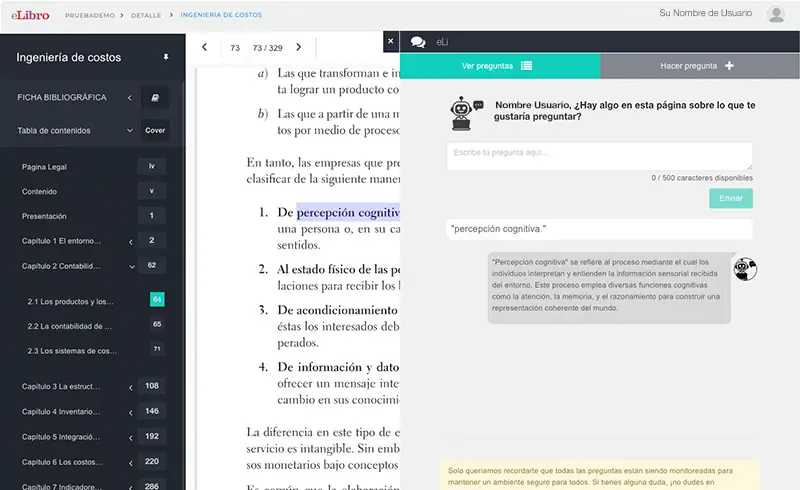
eLi allows you to make direct queries about the content of the book you are reading. By selecting a word or phrase you can ask it to explain concepts, summarize sections or clarify specific doubts.
Responses are stored in the book and accessible to other users, encouraging shared learning. Ask detailed, topic-oriented questions to get more accurate answers.
Use the Language Reader and Integrated Translator
Click to enlarge
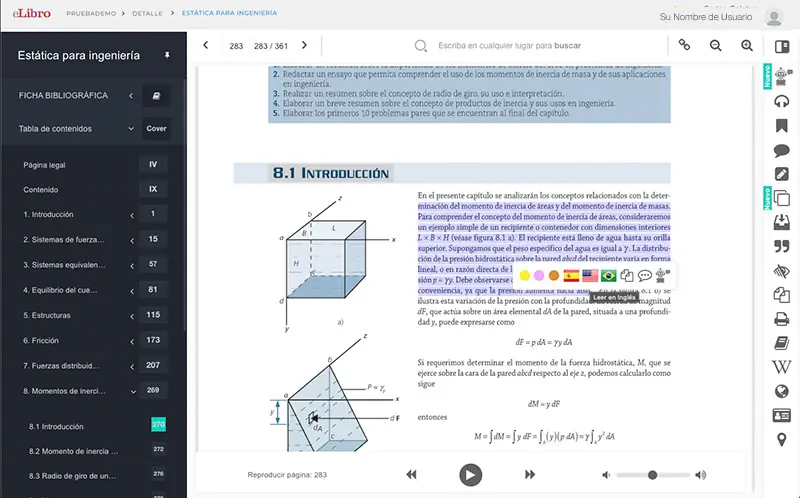
Select a text fragment and listen to it in Spanish, English or Portuguese. The translation feature allows you to convert terms, phrases and paragraphs into multiple languages, including Guaraní and Quechua — ideal for international students or language study.
Activate the Dyslexia Font for Inclusive Reading
Click to enlarge
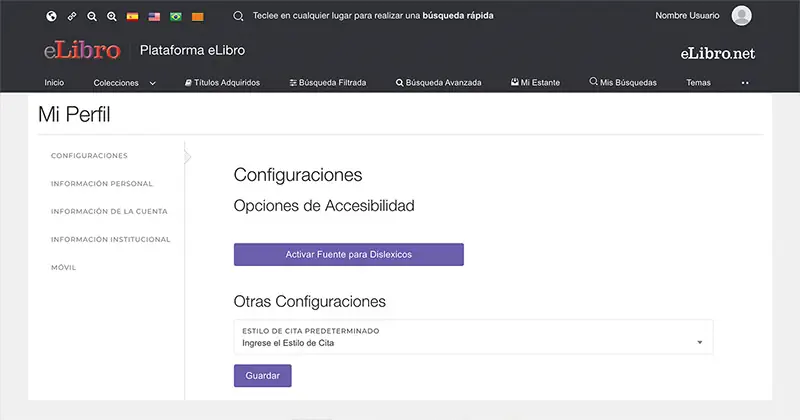
eLibro allows you to activate a special font mode designed for people with dyslexia, available in personal profile settings. This option removes reading barriers and ensures all students can interact with the material comfortably and effectively.
Benefit from Offline Downloads with Unlimited Renewal
Download complete titles to your device using the eLibro app to read without an internet connection. The initial loan is 30 days, with unlimited renewal — repeat the download operation as many times as needed to maintain continuous access to the material.
Manage "My Shelf" and Share Folders with Specific Content
Click to enlarge
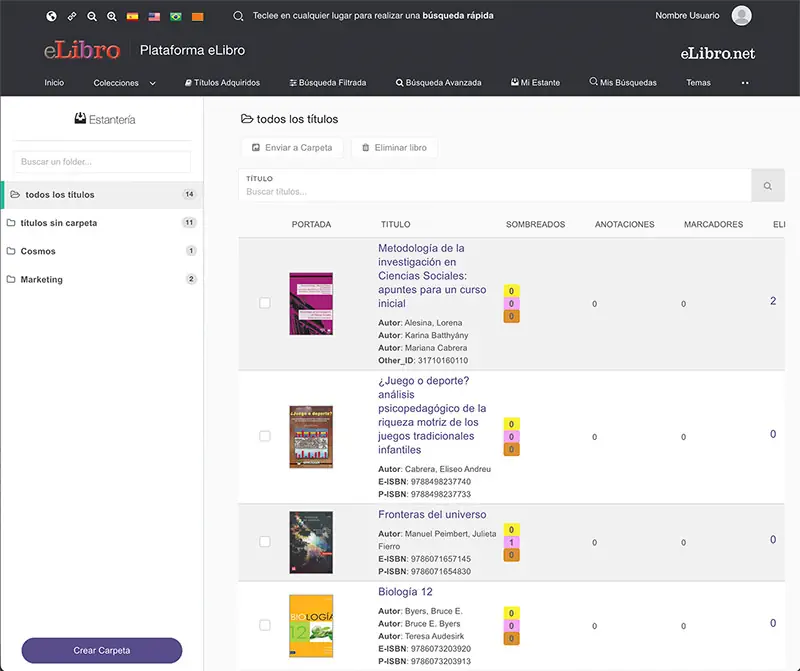
Each user has "My Shelf" with unlimited storage to save and organize documents in subfolders. Teachers can create specific collections for a class — with notes, highlights and eLi queries — and share the link with their students for optimized collaborative study.
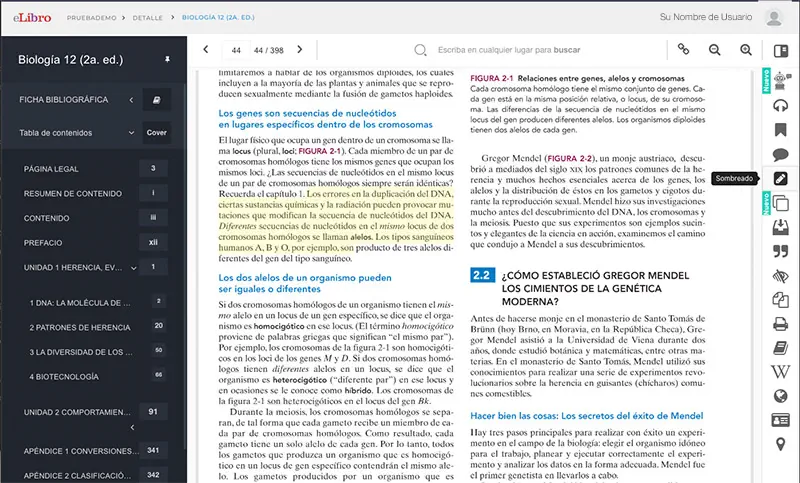
Make the Most of Interactive Study Tools
Click to enlarge
While reading online you can add bookmarks, write notes and highlight content in different colors (yellow, pink, orange). The Summary Mode lets you view only the highlighted text organized by color — ideal for reviewing and consolidating key ideas. Everything is linked to your account and saved securely.
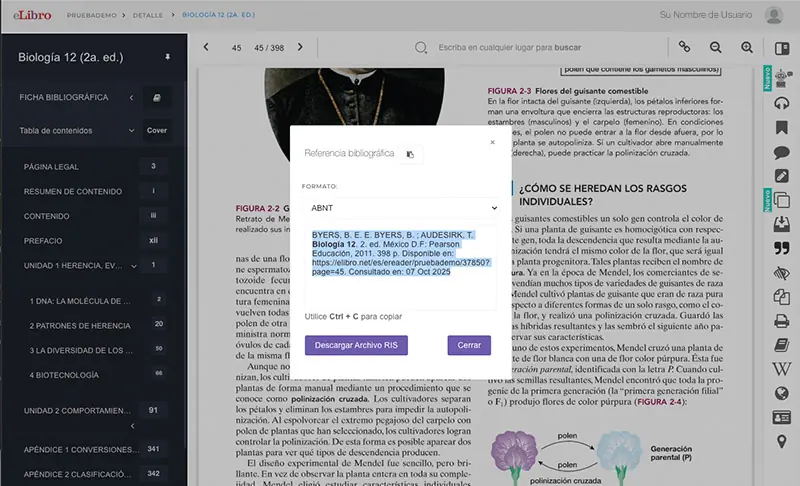
Copy and Cite Easily with Automatic Bibliographic References
Click to enlarge
When copying text from the platform, eLibro automatically adds the bibliographic reference of the source document, simplifying citation and promoting respect for copyright. The "Bibliographic Reference" tool also allows you to generate citations in nine different formats (APA, Vancouver and others).
Master Advanced and Boolean Searches for Precise Results
Beyond quick search, the platform offers filtered and advanced search options essential for in-depth research. You can use Boolean operators:
- AND — to narrow results by combining all terms.
- OR — to broaden results by searching for any of the terms.
- Quotes — to find exact phrases within the title.
You can also apply filters by document type, author, publisher, publication year or subject area.
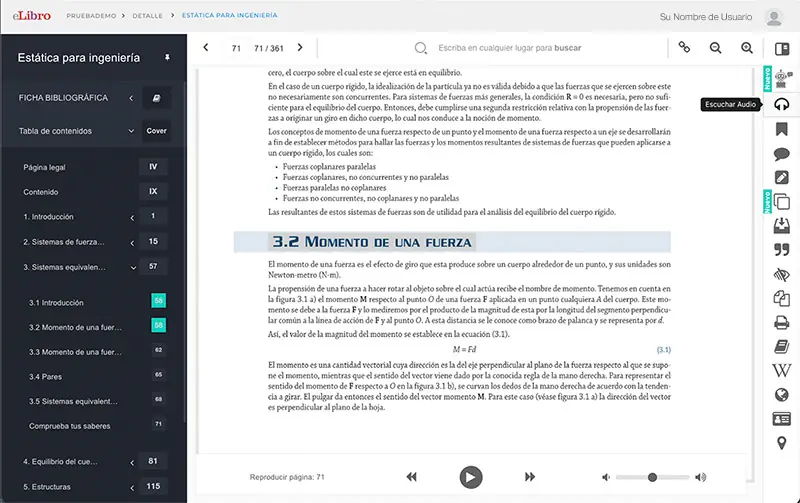
Use the Page Reader (Audio) for Auditory Learning
Click to enlarge
"Listen to Audio" lets you listen to the reading of the current page continuously until paused — ideal for auditory learners, for reviewing while doing other activities, or as support for people with visual difficulties.
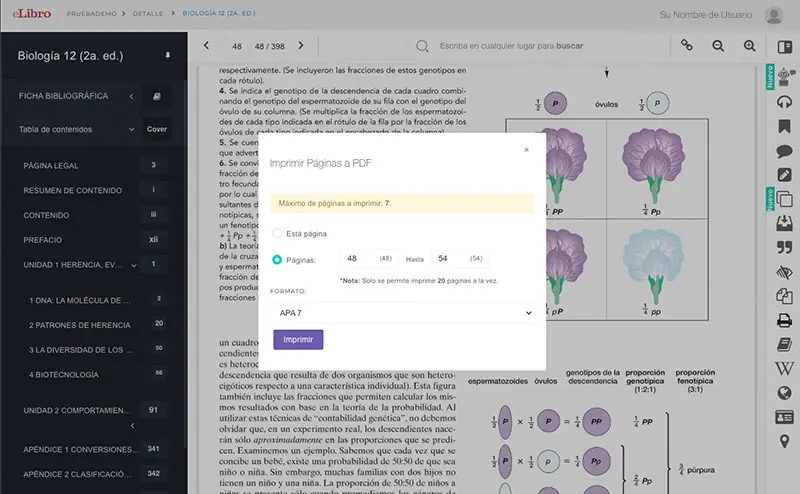
Print to PDF for Study and Annotations
Click to enlarge
While printing the complete book is not allowed, you can download partial chapters or page ranges as a PDF image. Users can print up to 40% of a book's total pages — useful for creating physical or digital support material, always within the framework of copyright respect.
Comprehensive User Account Administration
From the "users" module you can create accounts individually or in bulk by importing CSV lists — ideal for giving access to large groups of students or teachers. You can also manage, block, deactivate and change passwords. For bulk deletions or large-scale updates, contact the eLibro Technical Support team.
Platform Customization with Institutional Branding
Click to enlarge
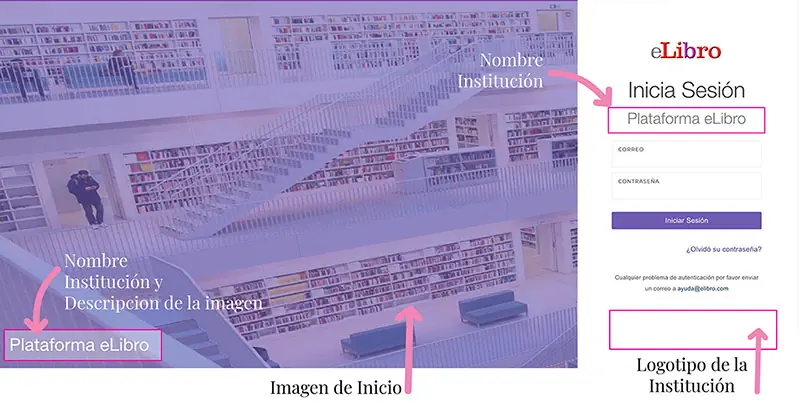
From the general settings you can replace the eLibro logo, the home image and the login image with those of your institution, visually integrating the platform with the university identity. You can also modify the channel name.
Control of Loan and Download Policies
You can configure the number of days downloaded book loans last (for example, reducing from 30 to 7 days) and set a limit on the number of devices on which users can install the eLibro app (default: 5 devices).
Definition of Allowed Registration Domains
To ensure exclusive access to the university community, you can specify the email domains enabled for account registration (e.g. @university.edu). This centralizes access control and prevents the use of personal emails.
Content and Acquired Collections Management
You can filter searches by your institution's subscribed collections and access acquired titles directly. You can also download a complete list of all books in Excel format — useful for creating specific bibliographies for professors or areas of study.
Publication and Management of Institutional Events
The "calendar" module allows you to create and publish events such as training sessions, meetings or important announcements, visible to all platform users. An institutional communication channel integrated directly into the digital library.
Access and Analysis of Detailed Usage Statistics
Reports provide detailed behavioral statistics: visits, pages read, copied text, prints and downloads per title. You can filter by "parent topic" and "subject" to identify trends by discipline or program — invaluable information for collection evaluation and development.
Monitoring and Guidance on the eLi Tool
Through the "questions by title" module in reports, you can review the queries users make to eLi and the responses obtained. This information allows you to guide students and teachers on how to formulate more precise questions to better leverage the AI tool.
Management of Administrator Accounts for the Team
eLibro allows you to designate up to five accounts with full administration permissions for library staff, facilitating task distribution. To request these permissions, send an email to soporte@elibro.com.
Take Advantage of eLibro's Support and Specialized Training
eLibro offers fast and efficient technical support, and specific training for librarians. Contact the team to resolve doubts, stay updated on new features and ensure maximum platform performance for your institution.

Fabián Bogovich
Training Coordinator
- Users: students, teachers, researchers and librarians who want to make the most of the platform.
- Librarians: account management, usage reports, general settings and MARC records.
- Teachers: tools to interact with students, share folders, create bibliography hyperlinks and link with the virtual campus.